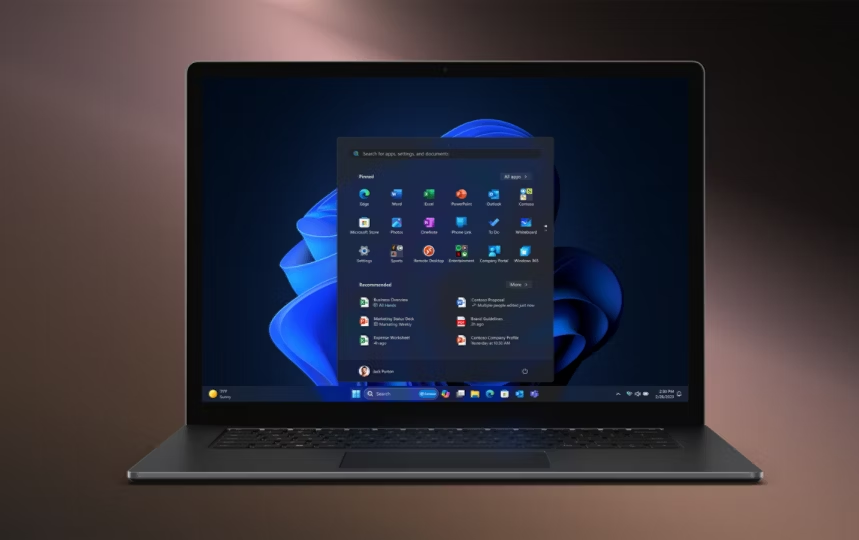
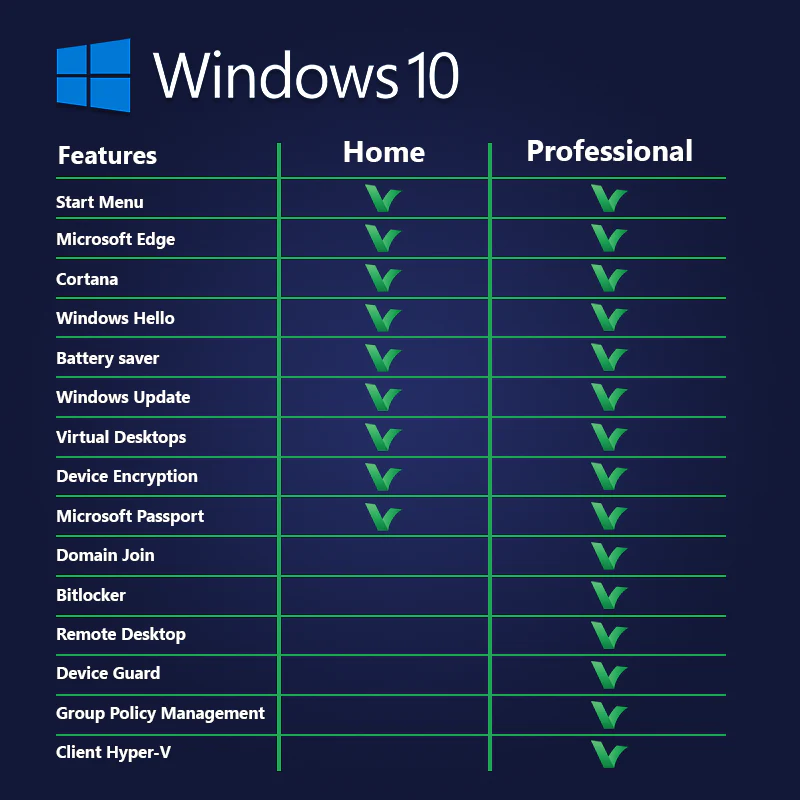
You've installed Windows 10 Pro on your computer, ready to tap into its advanced features like BitLocker encryption and Remote Desktop. But before you can fully customize your desktop or join a company domain, you’ll encounter a gentle reminder from Microsoft: it’s time to activate. Activation is the essential process that verifies your copy of Windows is genuine and properly licensed. While it might sound technical, it’s usually a quick and seamless experience. This guide will walk you through the various methods and steps to successfully activate your Windows 10 Pro, ensuring your system is secure, up-to-date, and ready for anything.
Understanding Your Activation Options
The path you take to activate Windows 10 Pro depends largely on how you obtained the software. The most common method is using a genuine 25-character product key, which you might have purchased from a retailer or received from your workplace's IT department. If you built your own PC, this key is what you’ll need. Alternatively, if you’re upgrading a device that previously had a valid Windows 7 or 8.1 Pro license, the digital license linked to your Microsoft account might automatically activate your new installation. Finally, organizations often use a volume licensing key or a Key Management Service (KMS) server for centralized activation. Knowing which scenario applies to you is the first step toward a smooth process.
The Standard Path: Activation with a Product Key
If you have a product key, the process is very straightforward. Click on the Start button and go to Settings (the gear icon). From there, navigate to Update & Security, and then select Activation from the left-hand menu. You will see an option that says "Change product key." Click on it, carefully type in your 25-character key, and then click Next. Windows will connect to Microsoft’s activation servers to validate the key. If the key is valid and hasn’t been used on more devices than the license allows, your copy of Windows will activate almost instantly, and you’ll see a confirmation message.
When Activation Happens Automatically
For many users, activation requires no effort at all. If you purchased a new PC with Windows 10 Pro pre-installed, it was activated at the factory. The license is embedded in the device's hardware, so a fresh install of Windows 10 Pro will typically reactivate itself automatically once connected to the internet. Similarly, if you performed a free upgrade from a legitimate older version of Windows Pro and later clean-install Windows 10 Pro on the same hardware, the system often recognizes the device’s unique signature and activates using a digital license. In these cases, you can check the Activation page in Settings to see the reassuring "Windows is activated" message.
Navigating Common Activation Hiccups
Sometimes, things don’t go as planned. You might see an error code like 0x8007007B or a message stating your product key is invalid. First, double-check that you’ve entered the key correctly, paying close attention to confusing characters like '0' (zero) and 'O' (the letter). Ensure your computer has an active internet connection. If the problem persists, your key might have been used on another machine beyond its limit, or it could be from an unauthorized seller. In such cases, you may need to purchase a new, legitimate key. Another helpful tool is the Activation troubleshooter, accessible on the Activation page, which can often resolve issues linked to recent hardware changes.
The Offline Alternative: Using the Phone System
In environments without internet access, or if online activation repeatedly fails, Windows provides a telephone activation system. When you attempt to activate and an internet connection isn’t available, an option for "Use the automated phone system" should appear. Clicking this will display a set of numbers—an installation ID. You call a free, automated number provided by Microsoft for your country, input that ID using your phone’s keypad, and receive a confirmation ID in return. Entering this long number back into the activation window on your PC completes the process, proving your license is genuine.
After Activation: Verifying and Maintaining Your Status
Once activated, a small notice appears under the Activation section confirming your status. It’s a good idea to link this activation to your Microsoft account if you haven’t already. This is crucial for reactivation. If you ever need to replace your motherboard or make another significant hardware change, Windows might see it as a new PC. By having your digital license linked to your account, you can use the Activation troubleshooter to select "I changed hardware on this device recently" and easily reactivate Windows without needing your original product key. This safeguard ensures your investment is protected for the long term.
Why Legitimate Activation Matters
Activating windows 10 pro with a genuine license is not merely a bureaucratic step. It’s your gateway to receiving critical security updates and feature upgrades directly from Microsoft, which are vital for protecting your data and privacy. An unactivated copy will eventually display persistent watermark reminders and limit personalization features, but more importantly, it leaves your system vulnerable. By taking a few minutes to complete this process, you ensure your computer is secure, fully functional, and supported, allowing you to leverage all the professional capabilities Windows 10 Pro offers with complete peace of mind.