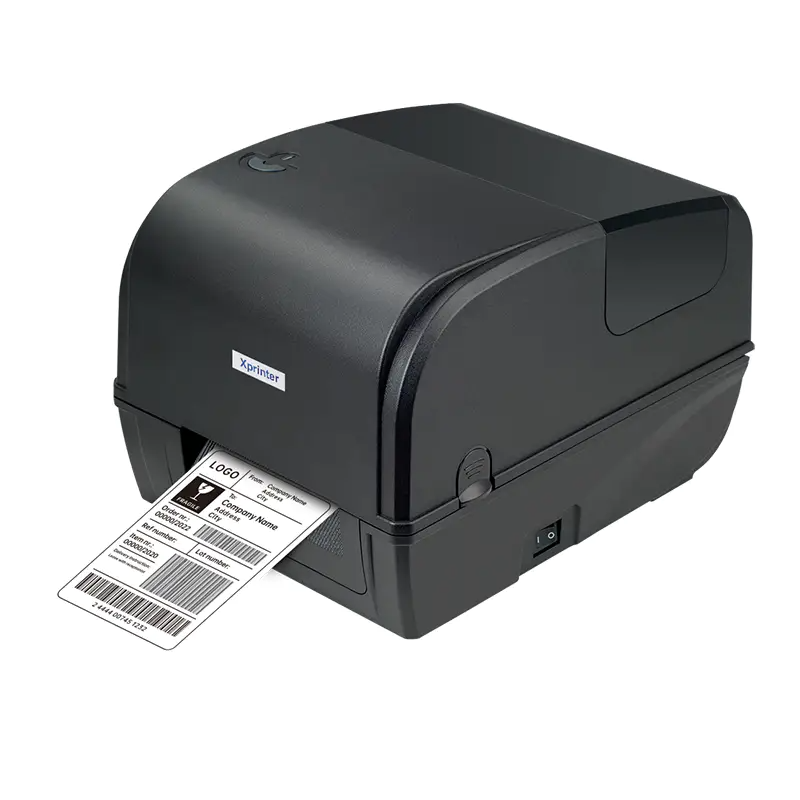
Few things disrupt a busy shipping desk or checkout counter quite like a label printer that suddenly stops cooperating. One moment labels are flowing smoothly, and the next you are staring at a blank strip of paper, a jammed roll, or a barcode that refuses to scan. Xprinter machines are generally reliable, but like any thermal printer, they run into a predictable set of issues over time. The good news is that most of these problems have straightforward causes and even simpler fixes, and knowing them in advance turns a stressful interruption into a two-minute correction.
When Labels Come Out Blank or Faint
Blank or faint labels are the most common complaint among thermal printer users, and the cause is usually simpler than it appears. The first thing to check is whether the label roll is loaded with the thermal side facing the print head, because a roll inserted upside down produces nothing at all. If orientation is correct, the print head likely needs cleaning, since residue buildup insulates the heating elements and weakens the image. Increasing the darkness or density setting in the printer driver can also restore contrast. Finally, check the label stock itself, because old or improperly stored thermal paper loses sensitivity and may never print darkly regardless of settings.
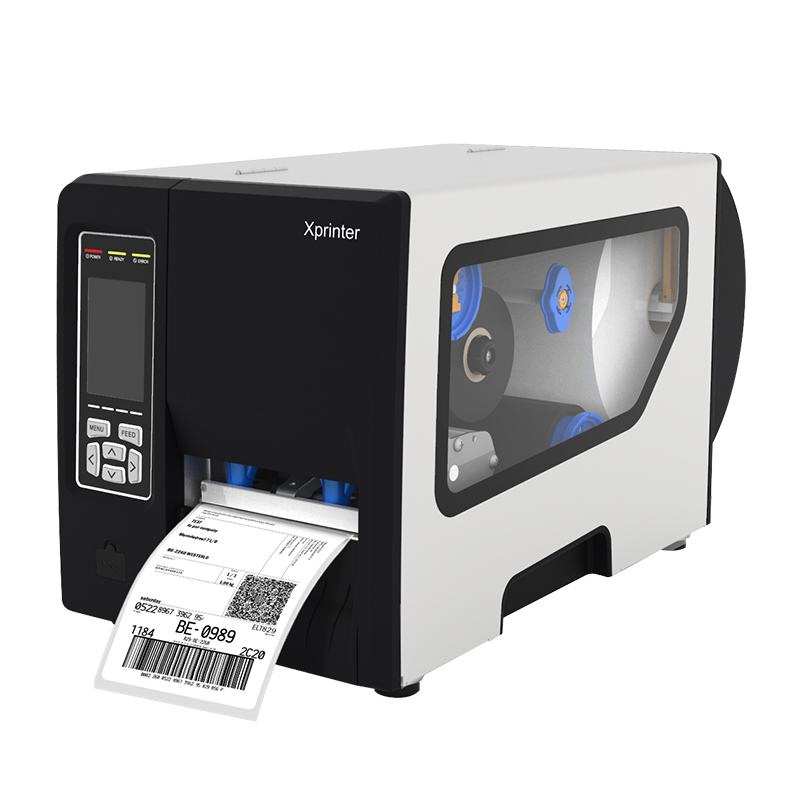
Dealing with Paper Jams and Misfeeds
Jams rarely happen without a reason, and identifying that reason prevents them from recurring. The most frequent culprit is misadjusted media guides, which allow the label roll to shift sideways as it feeds. Guides should touch the label edges snugly without pinching. Worn or dirty rollers can also fail to grip the media properly, causing slipping and skewed feeds. Adhesive residue left on the media path from a poorly die-cut roll is another common cause. When clearing a jam, always open the cover fully, remove the damaged label carefully, and inspect the path before reloading, since a small scrap left behind will cause the next jam immediately.
Fixing Barcode Scanning Failures
A label that looks fine to the eye can still fail at the scanner, and that gap between appearance and performance frustrates many users. Low print darkness is a frequent offender, producing bars that lack sufficient contrast. Print speed set too high can blur bar edges, especially on dense barcodes. Using the wrong resolution for small or high-density labels is another common issue, since 203 dpi has limits that 300 dpi models overcome. Print head wear and vertical lines through barcodes also degrade scanning. If a barcode fails repeatedly, print a test label at a slower speed and higher darkness, then compare it against the original.
Solving Connectivity and Communication Errors
When a printer stops responding entirely, the problem often lies in the connection rather than the hardware. USB cables can work loose or fail internally, so swapping the cable is a quick test. Network printers may have been assigned a new IP address by the router, breaking the link with the computer that sends jobs. Bluetooth connections can drop when devices move out of range or when another device claims the pairing. Driver conflicts after an operating system update are another frequent source of trouble. Restarting both the printer and the computer resolves a surprising number of these cases before deeper diagnosis is needed.
Addressing Misaligned and Skipping Labels
Misalignment shows up as printing that drifts across the label, sometimes creeping onto the backing or overlapping the next sticker. The usual cause is a miscalibrated media sensor. Most Xprinter label printer models can be recalibrated by holding the feed button until the indicator light blinks, which prompts the printer to measure label gaps automatically. Dust or adhesive blocking the sensor produces the same symptom, so cleaning it often restores normal behavior. Using label stock with inconsistent gap placement or mixing roll types without recalibrating will also cause skipping, which is why keeping consistent media matters.
Handling Ribbon Problems in Thermal Transfer Models
Thermal transfer printers introduce their own set of issues, and ribbon wrinkles top the list. A wrinkled ribbon produces streaked or patchy printing that mimics a damaged print head. Checking that the ribbon is threaded on the correct side and that tension is properly set usually resolves it. Ribbon breaks often stem from excessive heat settings or from a supply roll that is wound too loosely. Using a ribbon narrower than the label can also leave the print head running dry on one side, which causes premature wear. Matching ribbon width to media width is a small detail with significant consequences.
Knowing When to Seek Professional Help
Most thermal printer problems can be solved with cleaning, recalibration, and careful media handling. Some issues, however, point to component failure rather than configuration. Persistent vertical lines that survive cleaning usually indicate a damaged print head. Grinding noises, repeated motor faults, or a printer that refuses to power on may require service. If a machine is still under warranty, contacting the manufacturer before attempting repairs is the sensible route. For out-of-warranty units, weighing repair cost against replacement value often clarifies the decision. Knowing the boundary between user-fixable and professional repair saves both time and money.